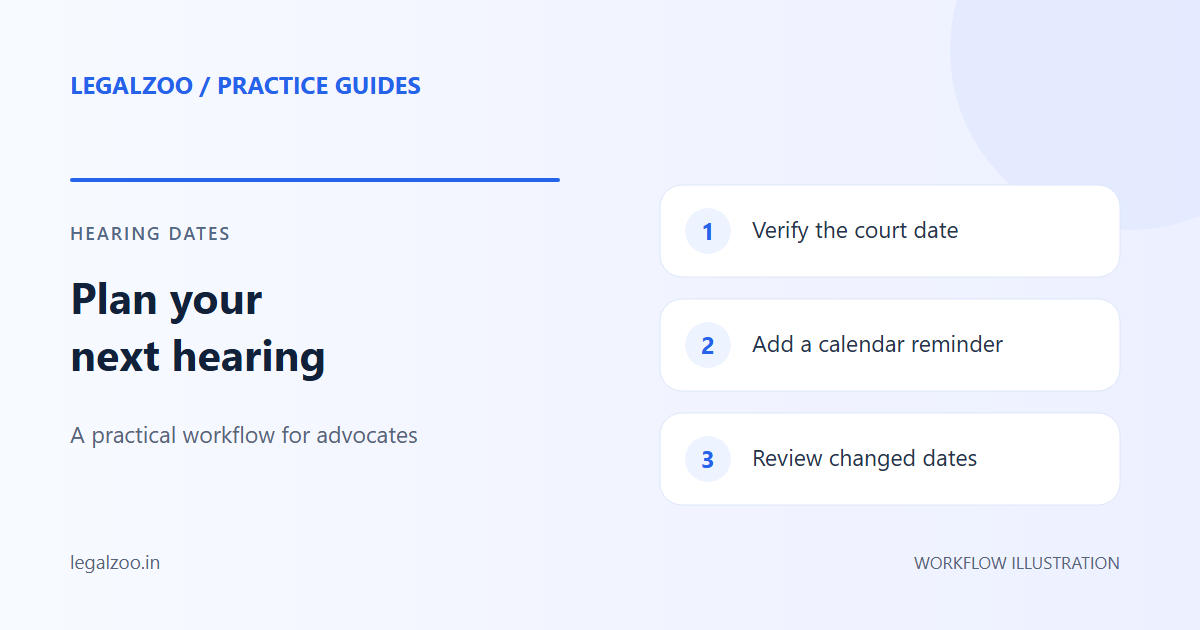
To sync hearing dates to Google Calendar, you need a tool that monitors eCourts for date changes and generates calendar events automatically. LegalZoo detects when a next hearing date updates, creates a Google Calendar event with case details, and sends an email with an ICS attachment for one-click import. This eliminates manual calendar entry entirely.
The Hearing Date Management Crisis
Missing a hearing date is a litigation advocate's worst nightmare. The consequences are severe:
- Ex parte orders against your client
- Costs imposed by the court for non-appearance
- Client trust destroyed — one missed date can end a professional relationship
- Bar council complaints in extreme cases
Yet most advocates manage hearing dates with a combination of: - A physical diary (easily lost or damaged) - Phone reminders (manually set, easily forgotten) - Junior advocate memory (unreliable under workload) - Sticky notes on the office wall (yes, really)
None of these systems scale. An advocate with 30+ active matters across multiple courts cannot reliably track every date manually.
The Ideal Workflow: eCourts → Calendar → Alert
The solution is a closed-loop automation pipeline:
eCourts Update → LegalZoo Detection → Calendar Event → Email + ICS → Phone Reminder
Here's how each stage works:
Stage 1: eCourts Update
After every hearing, the court updates the "Next Hearing Date" field on eCourts. This typically happens within 24-48 hours.
Stage 2: LegalZoo Detection
LegalZoo's daily scan (6:00 AM IST) checks all your tracked cases. When it finds a date that differs from the previously stored date, it triggers the alert pipeline.
Stage 3: Calendar Event Creation
If you've connected your Google account, LegalZoo creates a calendar event with:
| Field | Content |
|---|---|
| Title | Hearing: ABC v. XYZ |
| Date/Time | The new hearing date, 10:30 AM (default court time) |
| Location | Court name and complex |
| Description | CNR number, case stage, judge name, advocate details |
| Reminder | 1 day before (popup) + 7 days before (email) |
Stage 4: Email + ICS Attachment
Regardless of Google Calendar connection, every date change triggers an email:
Subject: 📅 Hearing Date: ABC v. XYZ — 25 July 2026
Case: ABC v. XYZ CNR: DLHC020123452024 Court: Civil Judge (Senior Division), Saket Courts Stage: Evidence — Plaintiff Witness 1 New Date: 25 July 2026
[Add to Google Calendar] [Download ICS]
The ICS attachment works with any calendar app — Apple Calendar, Outlook, Samsung Calendar, or any CalDAV-compatible client.
Stage 5: Phone Reminder
Google Calendar syncs to your phone. The reminder fires at the configured interval. You see the case details, court location, and stage — everything you need to prepare.
Setting Up Calendar Sync in LegalZoo
Step 1: Connect Google Account
Go to Settings → Calendar Sync and click "Connect Google Calendar." You'll be redirected to Google's OAuth consent screen. Grant permission for event creation.
Step 2: Choose Your Calendar
If you have multiple Google Calendars (personal, work, court), select the one where hearing events should appear.
Step 3: Configure Reminders
Set your preferred reminder intervals: - Preparation reminder: 7 days before (review case file, prepare arguments) - Final reminder: 1 day before (confirm court timing, arrange documents) - Morning reminder: 2 hours before (travel time, final check)
Step 4: Verify with a Test Event
Click "Send Test Event" to create a sample calendar entry. Verify it appears correctly with all fields populated.
ICS Files: The Universal Fallback
Not everyone uses Google Calendar. The ICS (iCalendar) format is the universal standard:
- Apple Calendar — Double-click the .ics file
- Outlook — File → Open Calendar → select the .ics file
- Samsung Calendar — Import from file
- Thunderbird — Events → Import
LegalZoo's ICS files include:
BEGIN:VCALENDAR
VERSION:2.0
BEGIN:VEVENT
SUMMARY:Hearing: ABC v. XYZ
DTSTART:20260725T103000
LOCATION:Civil Judge (SD), Saket Courts, New Delhi
DESCRIPTION:CNR: DLHC020123452024\nStage: Evidence\nJudge: Sh. R.K. Sharma
BEGIN:VALARM
TRIGGER:-P1D
ACTION:DISPLAY
END:VALARM
END:VEVENT
END:VCALENDAR
Best Practices for Calendar-Based Practice Management
1. Use a Dedicated Court Calendar
Create a separate Google Calendar called "Court Hearings." This keeps hearing dates visually distinct from personal appointments and office meetings. You can toggle it on/off and share it with your junior advocate.
2. Color-Code by Court
Assign colors to different courts: - 🔴 Red — High Court (high priority, strict timing) - 🔵 Blue — District Court (routine matters) - 🟢 Green — Tribunal (relaxed scheduling) - 🟡 Yellow — Client meetings
3. Set Recurring Preparation Blocks
For every hearing, block 2 hours the evening before as "Case Preparation." This is a recurring personal event that ensures you never walk into court unprepared.
4. Share with Your Team
Share the court calendar (view-only) with your junior advocate and office manager. They can see upcoming hearings without asking you.
5. Review Weekly
Every Sunday evening, open the week view. Scan for: - Multiple hearings on the same day (plan travel) - Gaps between hearings (client meeting opportunities) - Conflicts with personal commitments
Conclusion
A hearing date missed is a career-threatening event. A hearing date synced to your calendar with triple reminders is a non-event. The difference is automation.
Your calendar should know your court dates before you do.